USAID DEC
SEA II YouTube Channel: How to Upload New Videos
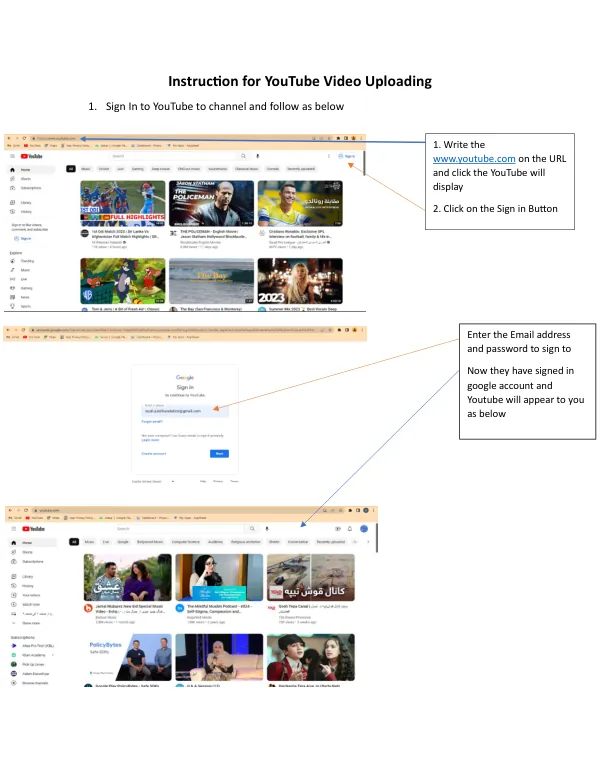
YouTube Video Uploading Process To upload a video to YouTube, users must first sign in to their account.
5 pages
Sign in to readA free account is required to download.
Abstract
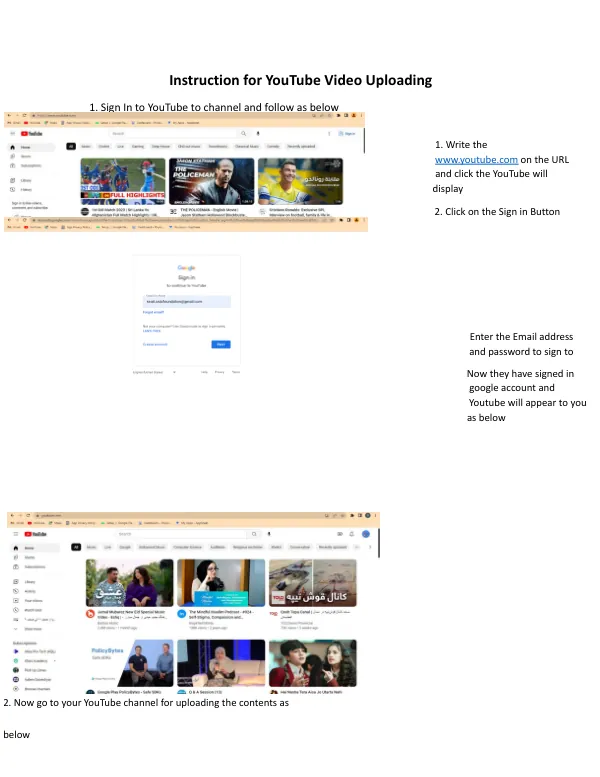
This is achieved by navigating to the YouTube website, located at www.youtube.com, and clicking the sign-in button. Upon entering a valid email address and password, users are logged in to their Google account, which also grants access to their YouTube channel. Once logged in, users can access their YouTube channel by clicking on the user icon and selecting "Your Channel." This action confirms successful login to the Afghanistan Science and Math App YouTube Channel, allowing users to manage their content. To upload a video, users must click on the video icon, which initiates the upload process. The next step involves selecting the video to be uploaded. Users can either drag and drop the video file into the upload area or select the address of the video file they wish to upload. Once the video is selected, users can click "Open" to initiate the upload process. The title of the video must be written in the designated field, followed by a description of the video content. When uploading a video, users have the option to select a playlist. If a playlist does not exist, users can create one by clicking on the "Create playlist" button. To create a playlist, users must write a name and title for the playlist, provide a description, and choose the visibility setting to "Public." Once the playlist is created, users can select it as the destination for their uploaded video. In addition to selecting a playlist, users must also confirm that their video is suitable for children by clicking the "Yes, it's made for kids" button. The next step involves writing relevant tags and keywords, which help YouTube's search algorithm identify the video and make it more discoverable. Users should choose a combination of keywords that accurately describe the content of their video. After completing the tags and keywords section, users can proceed to the visibility section. Here, they must choose the visibility setting for their video, which can be set to "Public" to make it accessible to all users. Finally, users can click the "Publish" button to upload their video to their YouTube channel.